
How to upload your assignment to the Turnitin dropbox
Assumptions:
- You have finished working on your assignment and are ready to submit your final document to Turnitin
- This is your first time submitting using Turnitin or you have not used Turnitin for a long time
Instructions:
1. On the relevant module page on moodle, scroll down to the assesments topic. Please note theTurnitin declaration in this section, by submitting your assignment you are agreeing with the terms listed in this declaration.
2. Click the assessment link with the Turnitin logo 
3. You will be taken to your “my submissions” page.
4. Some Turnitin dropboxes have more than one part to them. You can only upload one document to each part of a Turnitin dropbox. If your Turnitin dropbox has more than one part, there will be tabs underneath the details of the Turnitin dropbox (circled below). Please make sure that you upload to the correct part of the dropbox.

5. Click on “Submit Paper” (highlighted) to upload your assignment and wait for the page to load (this make take a few seconds at peak times)
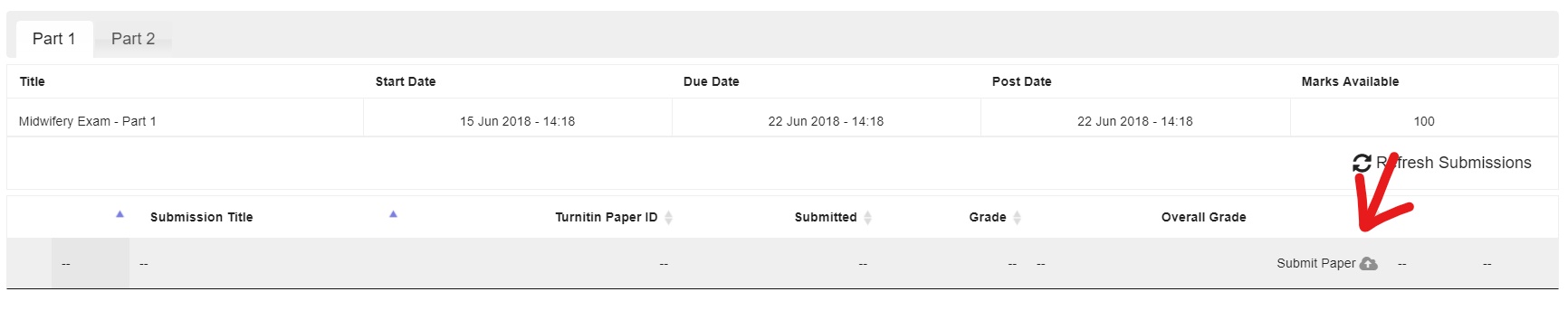
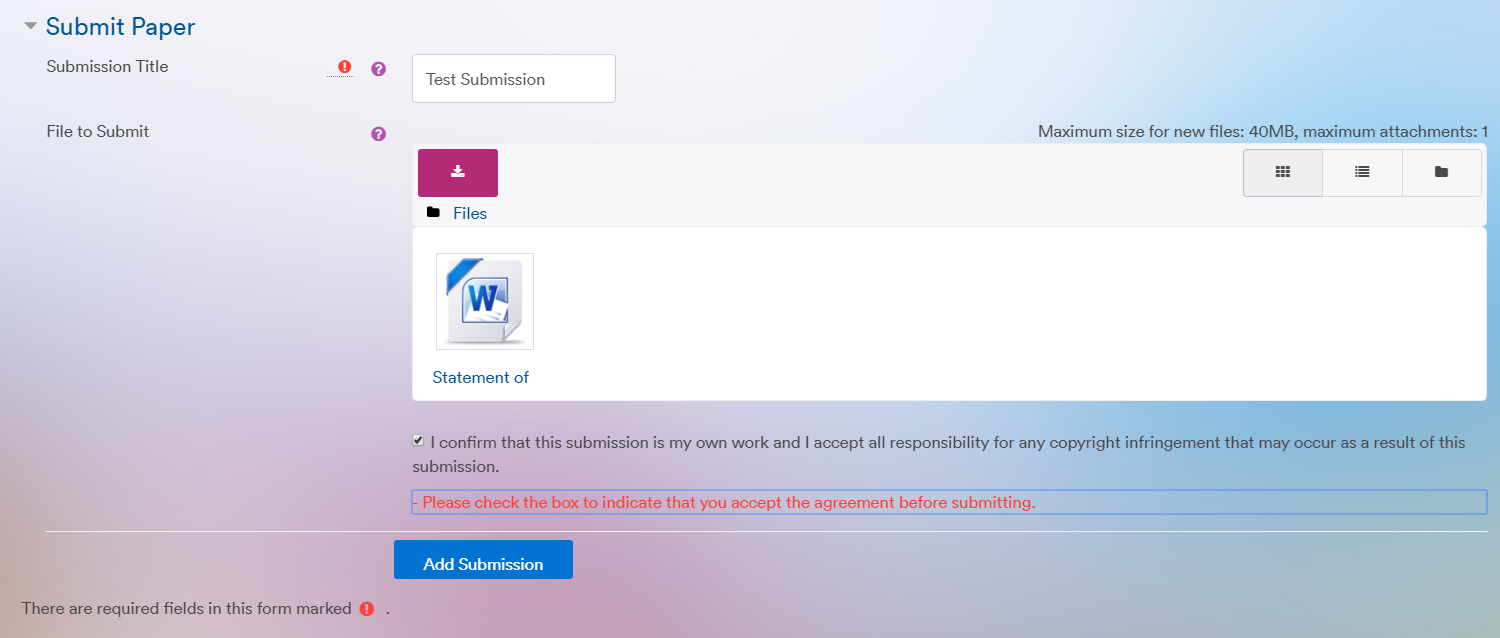
6. From here, you will be directed to the submission page on TurnItIn. You can either add a file from your computer or alternatively, drag and drop it into the submission box.
TurnItIn also requires you to title your work as well as agreeing to their terms and conditions. Ensure that the checkbox is ticked and that a title is given before proceeding, your submission title must contain your Student ID, module code and then your title. Click 'Add Submission'.
Upon submission, you should receive a digital receipt to confirm your submission has been accepted. Please keep a record of the TurnItIn submission ID for any queries.

.