Joining an online event using Microsoft Teams
In this strange new world of virtual events we know some of you may be less familiar with using online software than others, so here's some simple advice to get involved.
We host our events using Microsoft Teams which you can download and sign up to at any time in advance and means when you join one of our events your name (and photo if you add one) will appear. This is the equivalent to your name badge at an in-person event so it does help us see who you are.
If you don't want to download the application (or forget!) you can still take part in an event and will join through your web browser (it runs on Google Chrome, Firefox and Microsoft Edge/Internet Explorer but not Safari).
How to join:
When you click the link to the meeting which we send you, you will either:
- Join the meeting straight away (if using a University of Nottingham email address)
or
- You will enter into a 'lobby' (if using any other email address), where one of our team will admit you into the meeting
If you are joining from a handheld device, we advise downloading the Microsoft Teams app to join. We recommend that you join the event a couple of minutes before the start time to ensure we can admit everyone in time for a prompt start.
Video and audio:
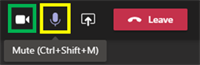
To help minimise background noise and to improve our presenters' video quality, please ensure that you are on mute and turn your video off upon entering the meeting. Please note that some devices such as iPads may automatically turn your audio on after you have joined so remember to turn this back off.
You can mute via the microphone symbol (highlighted below in yellow) and disable video (highlighted below in green) on the toolbar that will appear on your screen (top of the screen for desktops and the bottom for handheld devices).
Asking questions:
If you would like to ask a question, the icon highlighted in yellow will enable the raise your hand function (on desktop) and we will come to you to ask your question (remember to take yourself off mute). There is also the option of posting questions in the chat function too.

If you are joining using a handheld device, you will find the raise the hand function by clicking on the three dots. This will take you to a drop-down list of which you will find the hand icon.
Anything else?
You can read the Microsoft help guides for joining if you have the Teams programme and without.
We're all learning how to run virtual events as we go - so don't be afraid to ask questions of us and we would love to hear your feedback on how we can run them better to ensure your experience is the best it can be!
Email us at events@nottingham.ac.uk