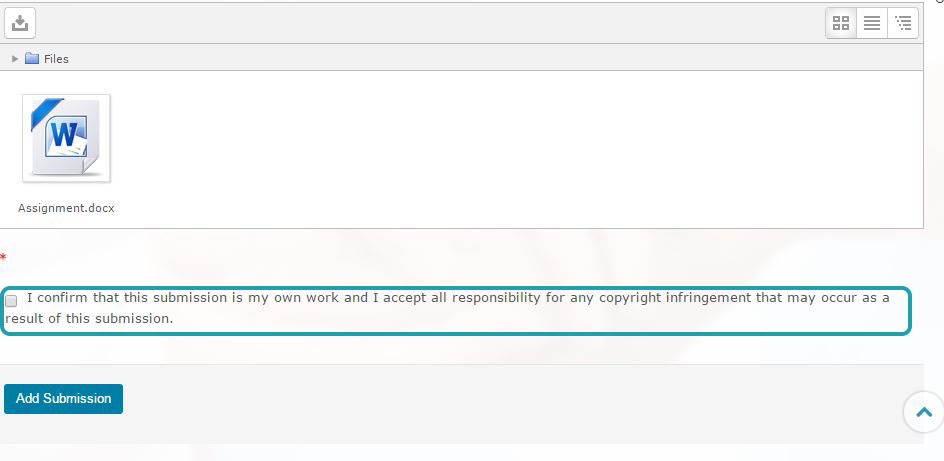
How to upload your assignment to the Turnitin dropbox
Assumptions:
- You have finished working on your assignment and are ready to submit your final document to Turnitin
- This is your first time submitting using Turnitin or you have not used Turnitin for a long time
- You are submitting a Word document (.docx) or a PDF file (.pdf)
Instructions:
1. On the relevant module page on moodle, scroll down to the assesments topic. Please note theTurnitin declaration in this section, by submitting your assignment you are agreeing with the termsin this declaration.
2. Click the assessment link with the Turnitin logo 
3. You will be taken to your “my submissions” page.
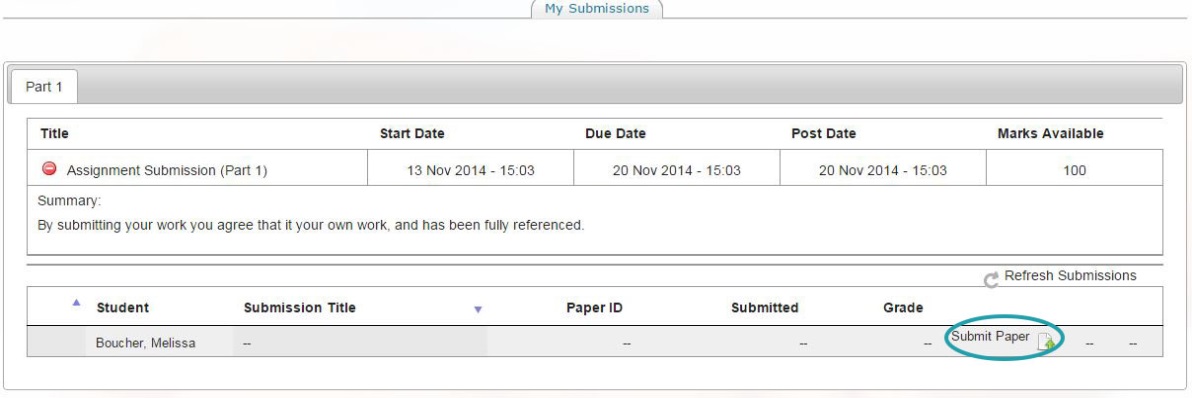
4. Some Turnitin dropboxes have more than one part to them. You can only upload one document to each part of a Turnitin dropbox. If your Turnitin dropbox has more than one part, there will be tabs underneath the details of the Turnitin dropbox (circled below). Please make sure that you upload to the correct part of the dropbox.

5. Click on “Submit Paper” or upload icon (both circled) to upload your assignment and wait for the page to load (this make take a few seconds at peak times, as Turnitin syncs its data)
6. You may need to accept the latest terms and conditions. If you need to do this you will be presented with a button similar to the one below. Click on the button to continue.

You may then have to accept the Turnitin user agreement, this will be similar to the one below.
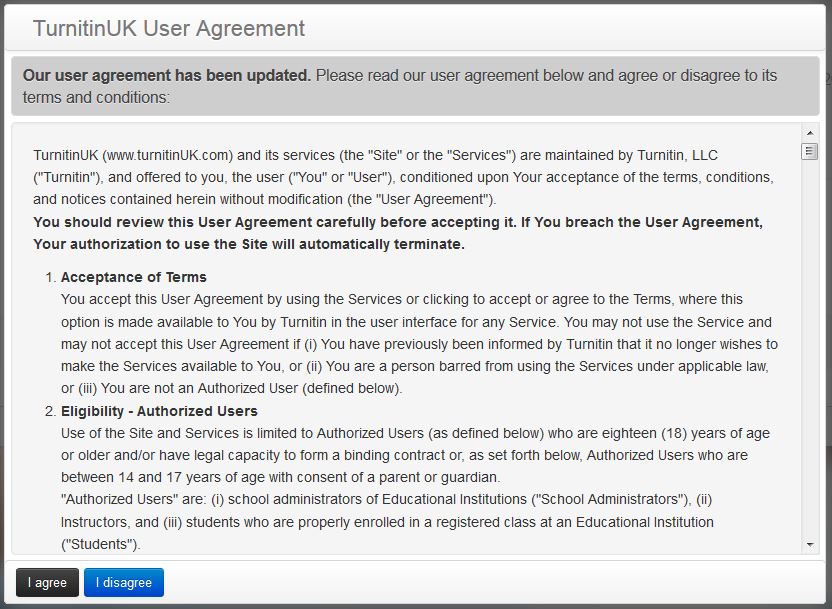
Please note that you will not be able to submit to TurnitinUK without accepting the latest terms and conditions, which will open in a pop-up.
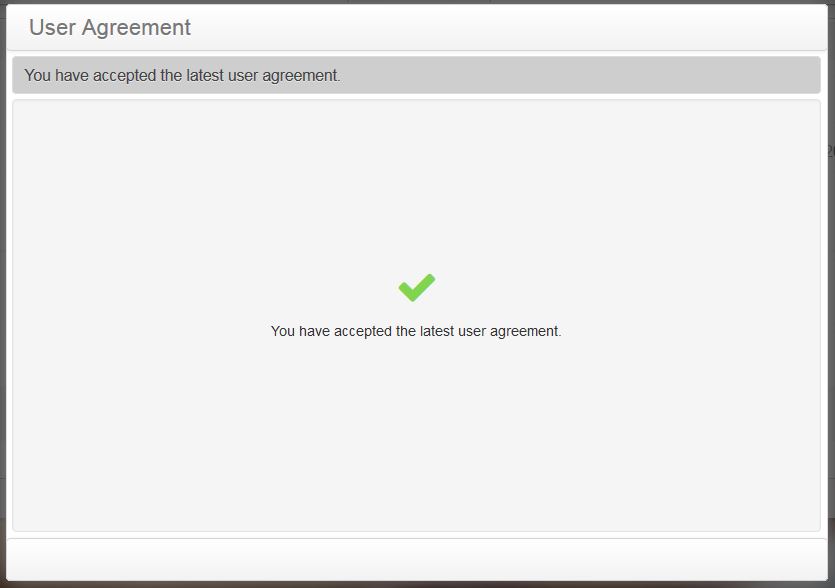
Click on the the button "I agree" to accept the terms and conditions (shown above). Once you have accepted, you should see a confirmation screen.
7. Put the name of your assignment in the Submission Title field. Your submission title must begin with your Student ID, module code and then your title.
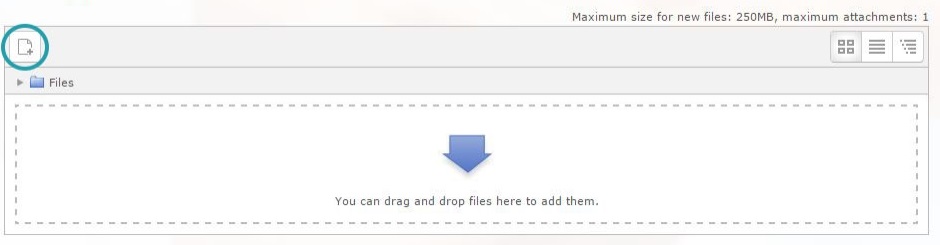
8. To upload your file either drag and drop your file onto the box or click add file to find your file on your computer.

Please note, this guide will step through how to upload your assignment by clicking in the box and finding a file, rather than dragging and dropping to upload.
9. Click the add file icon (circled below)
10. This will open a box, similar to the one shown below, click on upload file (circled below)

11. Click on Choose file
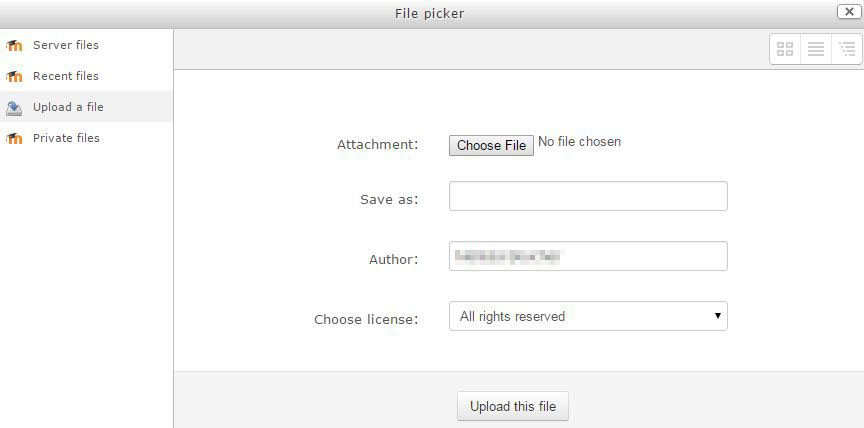
12. Find your assignment using the file picker and then click open
- A word document (.docx)
- A PDF file with selectable text (not a scanned file)