How to save your Word document as a PDF and compress it
Turnitin has a file upload limit of 20mb, if you try to submit a file over this limit, Turnitin will not accept the file. If your file size is bigger than 20mb you will need to save it as a PDF (if it is not one already) and
then compress it.
Saving your Word document as a PDF
1. Open your document in Word
2. Click on the "file" tab (in the top left hand corner)
3. Click "Save As"
4. Choose where you would like to save the file and what you would like the file name to be
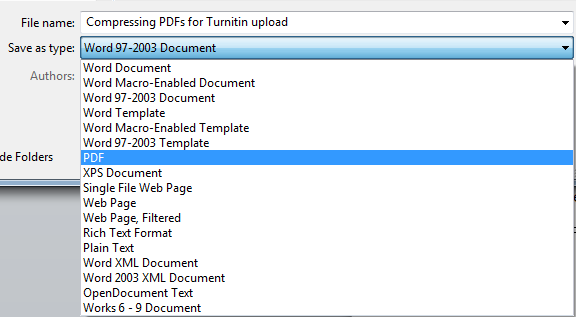
5. Select the "PDF" option from the "Save as type" dropdown box
6. Click Save
Compressing your PDF
If your PDF is too large (over 20mb) you can compress it using a simple website called SmallPDF (http://smallpdf.com/compress-pdf)
1. Locate your PDF files and drop it onto the box labelled "Drop PDF file here" (or click on the "locate file" and find it on your computer)
2. When you have uploaded your file the site will compress your file. The new file size will be shown in the grey box on the screen
3. Click "Download File Now" to download your compressed file.